MikroTik devices are preinstalled with RouterOS, so installation is usually not needed, except in the case where installing RouterOS on an x86 PC. The upgrade procedure on already installed devices is straight forward.
Upgrading
Version numbering
RouterOS versions are numbered sequentially when a period is used to separate sequences, it does not represent a decimal point, and the sequences do not have positional significance. An identifier of 2.5, for instance, is not “two and a half” or “half way to version three”, it is the fifth second-level revision of the second first-level revision. Therefore v5.2 is older than v5.18, which is newer.
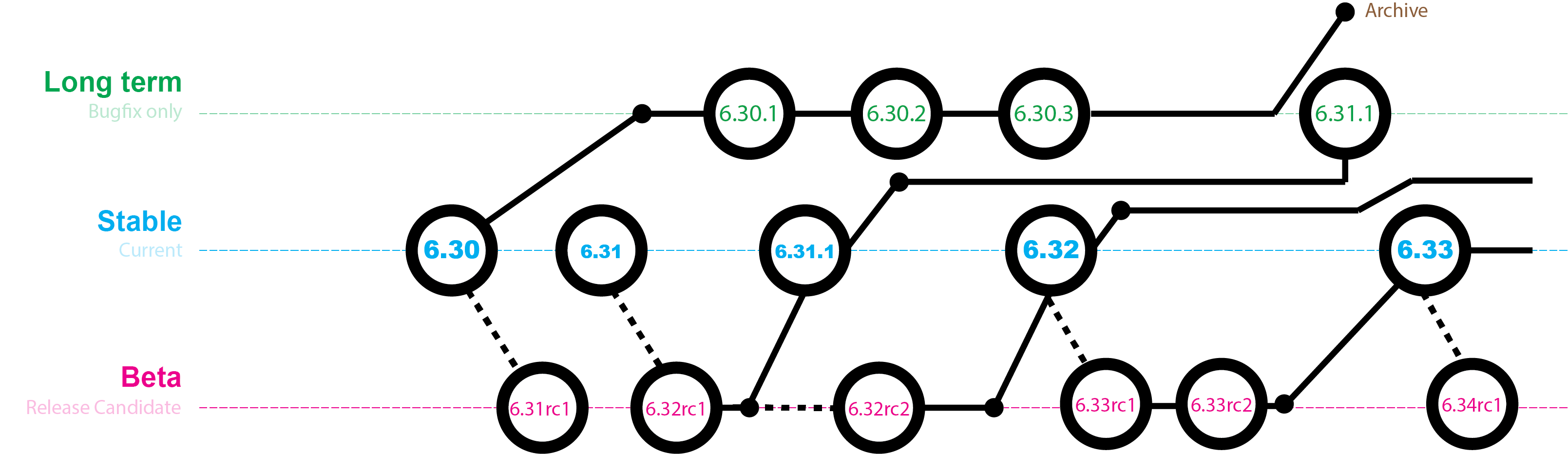
RouterOS versions are released in several “release chains”: Long-term, Stable and Beta. When upgrading RouterOS, you can choose a release chain from which to install the new packages.
Long term: Released rarely, and includes only the most important fixes, upgrades within one number branch not add new features. When a Stable release has been out for a while and seems to be stable enough, it gets promoted into the Long Term branch, replacing an older release, which is then moved to Archive. This consecutively adds new features.
Stable: Released every few weeks, includes all tested features and fixes
Testing: Released every few days, only undergoes basic internal testing, should not be used in production
Standard upgrade
The package upgrade feature connects to the MikroTik download servers and checks if there is a new RouterOS version for your device.
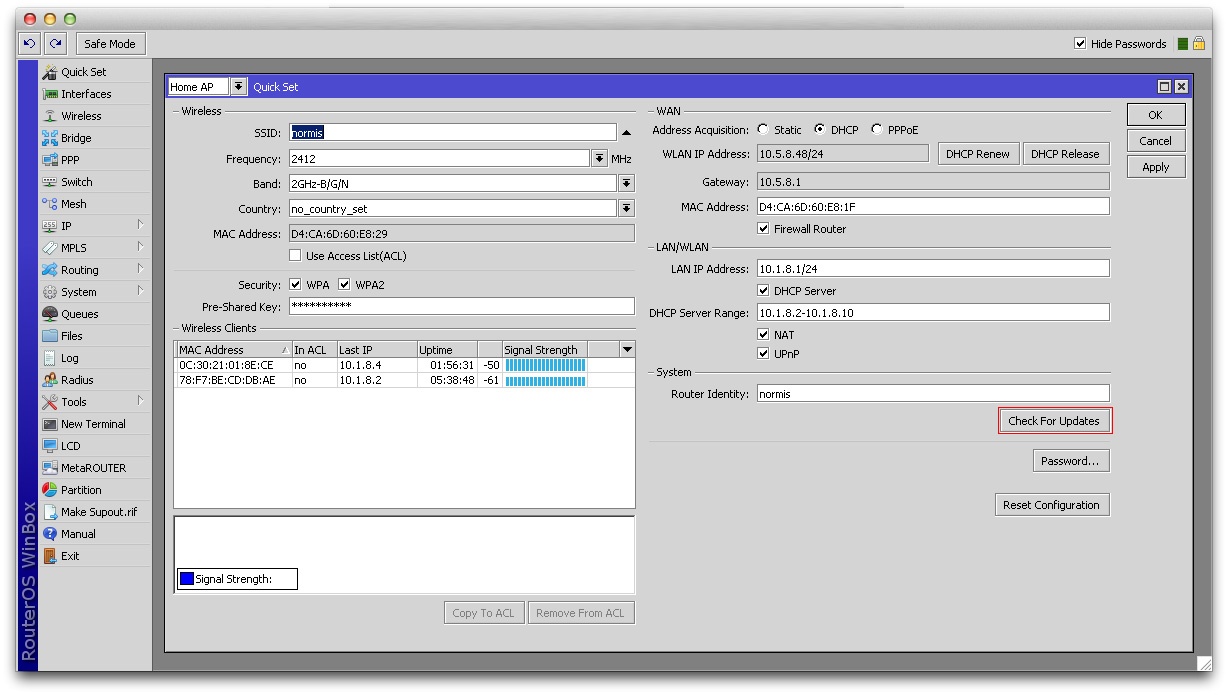
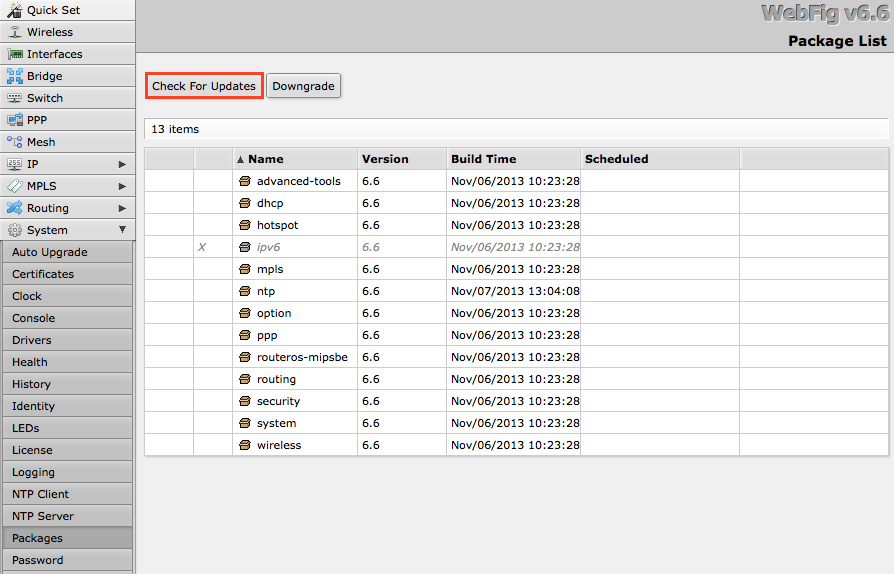
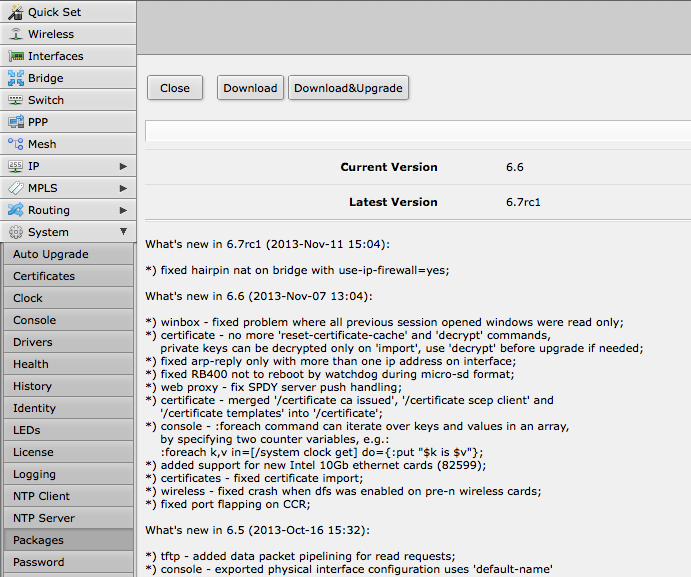
After clicking the Upgrade button in QuickSet or in Packages menu upgrade window will open with current Changelog (if newer version exists) and buttons to download and install latest versions.
By clicking “Download & Upgrade”, downloads will start and after successful download will reboot to install downloaded packages. Even if custom packages are installed, downloader will take that into account and download all necessary packages.
RouterOS cannot be upgraded through a serial cable. Only RouterBOOT is upgradeable using this method.
Manual upgrade process
First step – visit www.mikrotik.com and head to the download page, there choose the type of system you have the RouterOS installed on.
Download the Combined package, it will include all the functionality of RouterOS:
Using Winbox
Choose your system type, and download the upgrade package. Connect to your router with Winbox, Select the downloaded file with your mouse, and drag it to the Files menu. If there are